Showing posts with label Internet. Show all posts

Tuesday, 4 January 2011

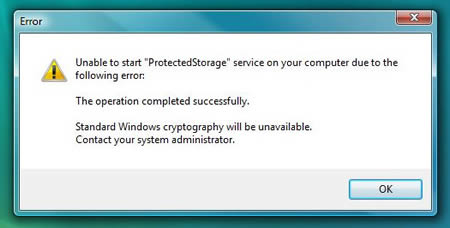
10 Funniest Windows Errors


10 Funniest Windows Errors


Kind of Recursive if you think of it... 

Sure... If only I could!

A self-conscious error message. 

It happens...

Am I also an error? 21 Reasons To Love And Hate Facebook

You do realize how this is going to be a problem, right?

Sometimes it does, unexpectedly work.

Sorry, I can't find the "any" key.

Now that's an error message!

Would it Kill you just to wait patiently 127 years?

Sunday, 12 December 2010

Internet Connection Sharing

To enable Internet Connection Sharing on a network connection:

· Open Network Connections.

· Click the dial-up, local area network, PPPoE, or VPN connection you want to share.

· Then, under Network Tasks, click Change settings of this connection.

· On the Advanced tab, select the Allow other network users to connect through this computer's Internet connection check box.

· If you want this connection to dial automatically when another computer on your home or small office network attempts to access external resources, select the Establish a dial-up connection whenever a computer on my network attempts to access the Internet check box.

· If you want other network users to enable or disable the shared Internet connection, select the Allow other network users to control or disable the shared Internet connection check box. Under Internet Connection Sharing, in Home networking connection, select any adapter that connects the computer sharing its Internet connection to the other computers on your network.

Increase BROADBAND bandwidth

Do you have broadband connection and you want to increase broadband's bandwidth then try this...
This is for broad band connections, though it might work for dial up.

· Make sure your logged on as actually "Administrator".

· Start->Run->type gpedit.msc

· Expand the "Local Computer Policy" branch.

· Expand the "Administrative Templates" branch.

· Expand the "Network Branch".

· Highlight the "QoS Packet Scheduler" in left window.

· In right window double-click the "Limit Reservable Bandwidth" setting.

· On setting tab check the "Enabled" item.

· Where it says "Bandwidth limit %" change it to read 0.

Effect is immediate on some systems, some need to re-boot. This is more of a "counter what XP does" thing. In other words, programs can request up to 20% of the bandwidth be reserved for them, even with QoS disabled.

Increase Your Cable Modem or DSL Speed in XP

This tweak is for broad band cable connections on stand alone machines with WinXP professional version - might work on Home version also. It may also work with networked machines as well This tweak assumes that you have let WinXP create a connection on install for your cable modem/NIC combination and that your connection has tcp/ip - QoS - file and print sharing and client for Microsoft networks , only, installed. It also assumes that WinXP will detect your NIC and has in-box drivers for it. If it doesn't do not try this.

· In the "My Network Places" properties (right-click on the desktop icon and choose properties ), highlight the connection then at the menu bar choose "Advanced" then "Advanced Settings". Uncheck the two boxes in the lower half for the bindings for File and Printer sharing and Client for MS networks. Click OK.

· From the Windows XP CD in the support directory from the support cab, extract the file netcap.exe and place it in a directory on your hard drive or even in the root of your C:\ drive.

· Next, open up a command prompt window and change directories to where you put
netcap.exe. then type "netcap/?".
It will list some commands that are available for netcap and a netmon driver will be installed. At the bottom you will see your adapters. You should see two of them if using a 3Com card. One will be for LAN and the other will be for WAN something or other. · Next type "netcap/Remove". This will remove the netmon driver.

· Open up Control Panel->System->Dev Man and look at your network adapters. You should now see two of them and one will have a yellow ! on it. Right-click on the one without the yellow ! and choose uninstall. YES! You are uninstalling your network adapter, continue with the uninstall. Do not restart yet.

· Check your connection properties to make sure that no connection exists. If you get a wizard just cancel out of it.

Now re-start the machine.

· After re-start go to your connection properties again and you should have a new connection called "Local area connection 2". Highlight the connection, then at the menu
bar choose "Advanced" then "Advanced Settings". Uncheck the two boxes in the lower half
for the bindings for File and Printer sharing and Client for MS networks. Click OK.

· Choose connection properties and uncheck the "QOS" box.

· Re-start the machine.

After restart enjoy the increased responsiveness of IE, faster page loading, and a connection speed boost.

Why it works, it seems that windows XP, in its zeal to make sure every base is covered installs two separate versions of the NIC card. One you do not normally see in any properties. Remember the "netcap/?" command above showing two different adapters? The LAN one is the one you see. The invisible one loads everything down and its like your running two separate cards together, sharing a connection among two cards, this method breaks this "bond" and allows the NIC to run un-hindered.

clear the search box on google.com

To clear the search box on google.com or the history of any text box in internet explorer:

Select "Internet Options" from the Internet Explorer "Tools" menu.
Select the "Content" tab at the top of the "Internet Options" window.
In the "Personal information" section at the bottom, click the "AutoComplete" button.
On the AutoComplete Settings window, click on the "Clear Forms" button.
You will get a window asking you to confirm clearing the history.
Click "OK", and you're done.


Control number of cookies

How do you control the number of cookies you allow on your system? If you want to increase your computer security then Block cookies from sites that use personal information. just follow these steps:

Click Start > Control Panel > Network And Internet Connections > Internet Options.
Click the Privacy tab, then use the slider bar to modify your cookie settings.
For instance, you can block cookies from sites that use personal identification without your consent. but if you want to further increase your security, then go for other privacy settings in this dialog. here you have options to Accept All Cookies and to Block All Cookies, with low, medium, medium-high, and high settings in between.
But before doing anything keep in mind that rejecting cookies may limit your actions on some Web sites and accepying all cookies may be harmful for you and for your system

Block a website without a software

Do you know that, You can block any site which you don't want to see. For this you dont need any software just follow these steps:

1) Open mycomputer.
2) Browse C:\WINDOWS\system32\drivers\etc.
3) Open file with a name HOSTS in notepad.


4) In this notepad file, Find 127.0.0.1 and Add 127.0.0.2
www.xyz.com (websites URL) , Under "127.0.0.1 localhost".


5) Save this notepad file and close it.

Now xyz.com is no longer acessebile.

Open blocked Sites

Do you want to access sites which are blocked? then just follow thes steps and enjoy surfing..
Here are steps:
1). Open Google.com.
2). Type transparent free Proxy address free.
3). In search result, Click on any of the link for free fresh transparent proxy list.
4). Now here look for a proxy address with port 8080.
5). Now go to tools menu of your browser.
6). Go to Internet options and click on use a proxy server for LAN options.
7). Type number that you found in the website with 8080 port.
8). Click Ok.
9). Now open any website.
Enjoy Surfing!!!

Increase the Browsing and Downloading speed in Windows Vista

In window vista the web browsing and downloading speed is very slow as compare to previous versions of windows. You can open the same sites in windows XP and server 2003 with much better speed. Here are steps to increase internet speed in window vista using browser internet explorer. Just follow these steps:


1). Open Internet Explorer.

2). Go to tools and then internet options.

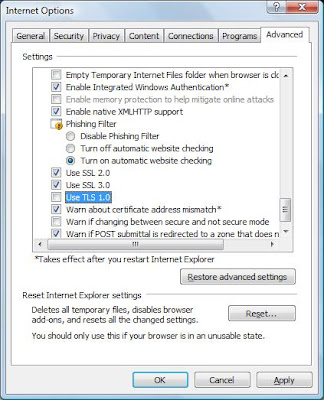
3). Now in internet options window go to Advance tab.

4). Scroll down in settings to find use SSL 2.0 to turn on SSL (Secure Sockets Layer) and tick on it and remove tick from Use TLS 1.0 to turn off TLS(Transport Layer Security.


5). Click OK.
Its done.

Now web browsing speed should be much better than before.

Download Whole Website

Do you want to download a whole website so that you can browse it later? Now no need to save every webpage one by one. You can download complete website and can browse it later offline, for this you need a software WinWSD website downloader. WinWSD is a free program that will let you download a complete website with pictures, and movies to your computer’s hard disk. This small program (less than 3MB in size) is extremely easy to use. It comes with several options so, as per your preferences you can download a complete website or certain files within a very short period of time. Your can view the downloaded files with the built-in browser or through your favorite web browser.
WinWSD WebSite Downloader supports Windows 98, Windows Me, Windows 2000, Windows XP and Windows Vista.


Click Here To Download

Use Epic Web Browser - India's First Web Browser

As we all know there are lots of Web Browsers available including Internet Explorer,Opera, Firefox,Google Chrome and Safari. But now there is one more Web Browser it is Epic Browser, it is a bit different in the sense that it has been created specifically with Indians in mind.


Epic Browser is the world’s only antivirus browser that you can download for free. It is powered by Mozilla and is developed by Bangalore based Hidden Reflex. It has an inbuilt addon to detect websites that are dangerous.

It also allows you to type in 12 different Indian languages including Hindi, Gujarati, Marathi, Kannada, Telugu, Bengali, Tamil, Malayalam, Urdu and Punjabi. Also in the browser’s sidebar you can edit text, read news, view videos and pictures.

1500 plus ‘desi themes’ available to give the browser a Indian look. It have Simple browsing history deletion option. It seems great, and it is freely available to use. Download now..

Click Here To Download Epic Browse.

Make Firefox faster - Lower the amount of memory it used

If you have old desktop PC of RAM less than 1 GB and have installed firefox. Then may be you noticed that your computer slow down after its installation. Here is trick to make it faster by decrease the amount of memory it used.


If your computer has ram of 1 gb or more than 1 gb, then you need not to do this.
Follow given steps:
1). Open firefox.

2). In your Firefox address bar, enter the following text: about:config.

3). Scroll down to the entry titled browser.cache.memory.enable and make sure the Value is set to true. If it’s not, double-click anywhere in the browser.cache.memory.enable line and the status will change to true.

4). Now Right-click anywhere in the about:config window and select New and then Integer.


5). Enter preference name as browser.cache.memory.capacity in the New integer value window.


6). Click OK.

7). Now you have to enter a number in the Enter integer value, but that number depends on how much memory you have , how much you want to give Firefox. If you have 256MB or less RAM, enter 4096 as the value. If you have 512MB of RAM, enter 6144 or 8192.


8). Click OK.

Its done.

Restart firefox and seee then changes. It must be much faster now..

Increase Download speed of your LAN - Get Maximum LAN speed

If you are tired of slow downloading speed of your LAN, then try this may be this works for you. Just follow given steps to get maximum LAN speed:

1). Open Control Manager.
2). Double click on Device Manager.
3). Now window will asked for your permission to continue, just click on continue.
4). In device manager window locate network card & double click on it.
5). It will open new window, Here click on Advanced tab.
6). Now locate speed and duplex in property and then on right hand side select 100mbps half duplex.
7). Click OK.
Its Done.
Now your LAN download speed must be faster than before, Its the maximum LAN download speed.

Intresting Youtube Facts!!!

We all are very much familiar with Youtube, for those who don't know YouTube is a video-sharing website on which users can upload, share, and view videos.Here are some intresting facts about Youtube.
  • Youtube .com was founded by Steven Chen, Chad Harley and Jawed Karim, they were friends and were working for PayPal at the time.
  • It was created in order for the friends to share video clips of a dinner party, which were too large to email.
  • First video was posted on April 23,2005 by one of its founder Jawed Karim.
  • First video was Me at Zoo and it was 18 seconds long, It has Karim and some elephants.
  • You tube Domain's Birthday is Valentine day (14 feb 2005).
  • More than 50% youtube users are 20 year older or younger.
  • Country who pasts as well as watches the most videos is United states.
  • Most popular video on Youtube is Lady Gaga's Bad Romance, it has been viewed more than 250 million times.
  • 70% of youtube users are Americans.
  • 20% of Youtube videos are categorized as Music.
  • Average visitor spends 15 minutes everyday on YouTube.
  • On an average 10 number of videos uploaded per second on youtube.
  • You would need 1700 years to watch all videos present on youtube today.
  • Acoording to Alexa, It is 3rd most popular website in world.

Visit Sites which required Registration without Registration

Nowadays many free websites have registration walls, user can't acesss data without registration. User have to registered themselve first on a free Web site just to read some news or view some information. This registration task is very annoying, it is also a potential source of email.


Now you can get access to protected content without signing up for an account. For this you have to visit Bugmenot.


Bugmenot is an internet service that provides usernmes and passwords to let Internet users bypass mandatory free registration on websites.

you just need to type URL of websites website that you’d like to access in the URL box on front page of bugmenot. Click on get Login. BugMeNot then will return a list of user names and passwords along with their accuracy percentage.

you can easily get access to that website by using these logins and passwords.

Shortcut keys For Google Chrome

Google chrome have some shortcut keys you van save lots of your time by using them. some of them are:

1. You can drag a link between tabs to open the link in a new tab in the specified position on the tab strip.

2. Ctrl1-8 allows you to switch tabs by tab position on the strip. Ctrl-9 switched to the last tab.

3. Like Firefox you can drag the tab to a different position in the tab strip, the UI is smoother.

4. Use Ctrl-Shift-T to reopen the last closed tab. Chrome remembers last 10 closed tabs.

5. Many Firefox and windows shortcuts work as expected like Alt-F4 to close current windows, use Ctrl-w to close current tab, Ctrl-Tab to switch to next tab, Ctrl-ShifBoldt-Tab to switch to previous tab etc.

Add images to Gmail Signature

Now you can add image in your gmail signature, So whenever you send any email it automatically add that image at the bottom of your composed mail and send. You can also place links and some text in our signature.


follow given steps:

1). Open your
Gmail account.

2). Now click on
Settings on top right side.

3). In settings, click on
Insert image icon.


4). It will open add an image window, Here enter a
Valid image URL. If you entered correct image URL then it will show you preview of image.


5). Click
OK.

You can also adjust the size of image by just selecting and resizing through mouse from corners.


6). Now in settings page, scroll down and click on
save changes.

Its done.

View streets through Google Street View

Now you can view streets of US without going US, you can visit there while sitting in front of your computer.

This is possible now with the help of Google Street View, a new service by google by which you can view the streets of some areas. Till now this service is only available to few countries like us and not for India, most likely Google will soon add this feature for other countries. This feature is a very innovative but on the other hand, it could be also used for bad reasons.

Here are some instructions to use Stret View
Zoom To zoom closer into the earth press the + button in the navigation bar on the left of the screen. You can also zoom closer by double left clicking your mouse, or moving the scroll wheel forward.

Tilting Using your keyboard, simultaneously hold down the Shift key and the Up arrow to tilt down or the Down arrow to tilt up. To tilt, you can also select Shift and use the scroll wheel on your mouse. You will be able to see 3D buildings, structures and terrain as shown below.

Search, Customize and Send Your View Enter any place in the Search bar, and you will fly to your point of interest. Use the navigation controls to customize your view, zooming and tilting to experience your place in 3D.


Go to Google Maps, to view streets as this feature is merged with Google Maps and enjoy!!!